Android - installing the app, step by step
Five steps, about two minutes. Your phone will show you two warnings that look like alarms: they are explained below, at steps 3 and 5. Do not skip them, and do not worry when they appear.
- Tap the «Download the app for Android» button. A file ending in «.apk» starts downloading: that is the application package. Your phone saves it in the Download folder.
- When the download has finished, open the file. You can tap the notification that appears at the top of the screen, or open the «Files» app (on some phones it is called «Downloads» or «File manager») and tap the name of the file.
- Your phone will say no: that is normal, and it happens only once. A message will appear along the lines of «For your security, your phone is not allowed to install unknown apps from this source» or «Install blocked». Tap «Settings» inside that message: a screen opens with a switch called «Allow from this source» or «Install unknown apps». Turn it on and go back with the arrow: the installation carries on from where it stopped.
- Tap «Install». You now see the name of the app, OnStage, and the button that installs it.
- The Play Protect warning appears: read the window title, because one button is misleading. This is Google's automatic check: it flags as unknown every app that does not come from the Play Store, so it flags ours too - ours is not on the Play Store by choice. The exact wording differs from phone to phone: look at the title at the top and follow the matching case. If the title is "App not recognised": tap "More details", then the "Install anyway" button that appears. If the title is "App blocked to protect your device": the words "Install anyway" are already visible, but they are not a button - tap them anyway, that is the right choice. The blue "Ok" button, the highlighted one, does the exact opposite: it cancels the installation. Do not tap it.
Done: the OnStage icon is now among your apps. The file you downloaded is no longer needed and you can delete it from the Download folder.
Why your phone warns you (and why you can carry on)
Android trusts whatever comes from the Play Store and calls everything else «unknown». It is not telling you that it found something bad inside the file: it is telling you that it did not download the file itself. The warning is exactly the same whether the file comes from us or from anybody else - which is precisely why where you take it from matters.
Take it from this page, or from the file the association sends you directly. If an OnStage «.apk» reaches you through a group chat, a forwarded message or a website that is not ours, do not install it: write to us and we will confirm.
The permission you grant at step 3 applies only to the app you opened the file from (the browser, or «Files»); it does not open your phone up to everybody, and you can withdraw it whenever you like from Settings.
Updates arrive on their own
You go through this procedure once. From then on the app updates itself: it checks whether there is anything new, downloads it and applies it the next time you open the app, with nothing for you to download.
Every now and then - when something changes deeper inside the app - a new file is needed instead. When that happens the app itself tells you and brings you back here: it installs over the one you already have, and you lose neither your login nor your data.
iPhone and iPad - through TestFlight
On iPhone there is no file to download, and that is not our choice: Apple does not allow an app to be installed from a file, the way Android does. The official route for apps distributed outside the App Store is TestFlight, Apple's own app made for exactly this purpose.
The iPhone app is not ready yet: nobody has received an invitation so far. When it is ready, this is how it will work.
- Install TestFlight from the App Store. It is free and it is made by Apple. Search for it by name, like any other app.
- Ask us for an invitation. You need an invitation, and it arrives by email at the address of your Apple ID. Write to us from the contact page, giving that address.
- Open the invitation link on your iPhone. TestFlight opens on the OnStage entry: tap «Accept» and then «Install». The icon appears among your apps, like any other.
- You will find updates inside TestFlight. When one is released, TestFlight lets you know and you install it from there.
If you would rather not install anything
You are not obliged to install the app: the website does the same things and works from any phone. If you want it a tap away, like an app, open the site in your phone's browser and use «Add to Home Screen» from the browser menu: an icon appears that opens the site full screen.
Checking that the file really is ours
This part is not needed in order to install the app: it is for anyone who wants to check for themselves that the file they downloaded is the one we published and not a modified copy. Every package of ours is signed with the same key, and that signature cannot be imitated by anybody else.
The fingerprints of the package cannot be read at the moment: try again later, or ask us for them from the contact page.
If you get stuck
If at any point you do not understand what your phone is asking you, stop and write to us: we will tell you what to tap, or install the app for you in person at the first opportunity. You do not have to work it out on your own.
What the app looks like
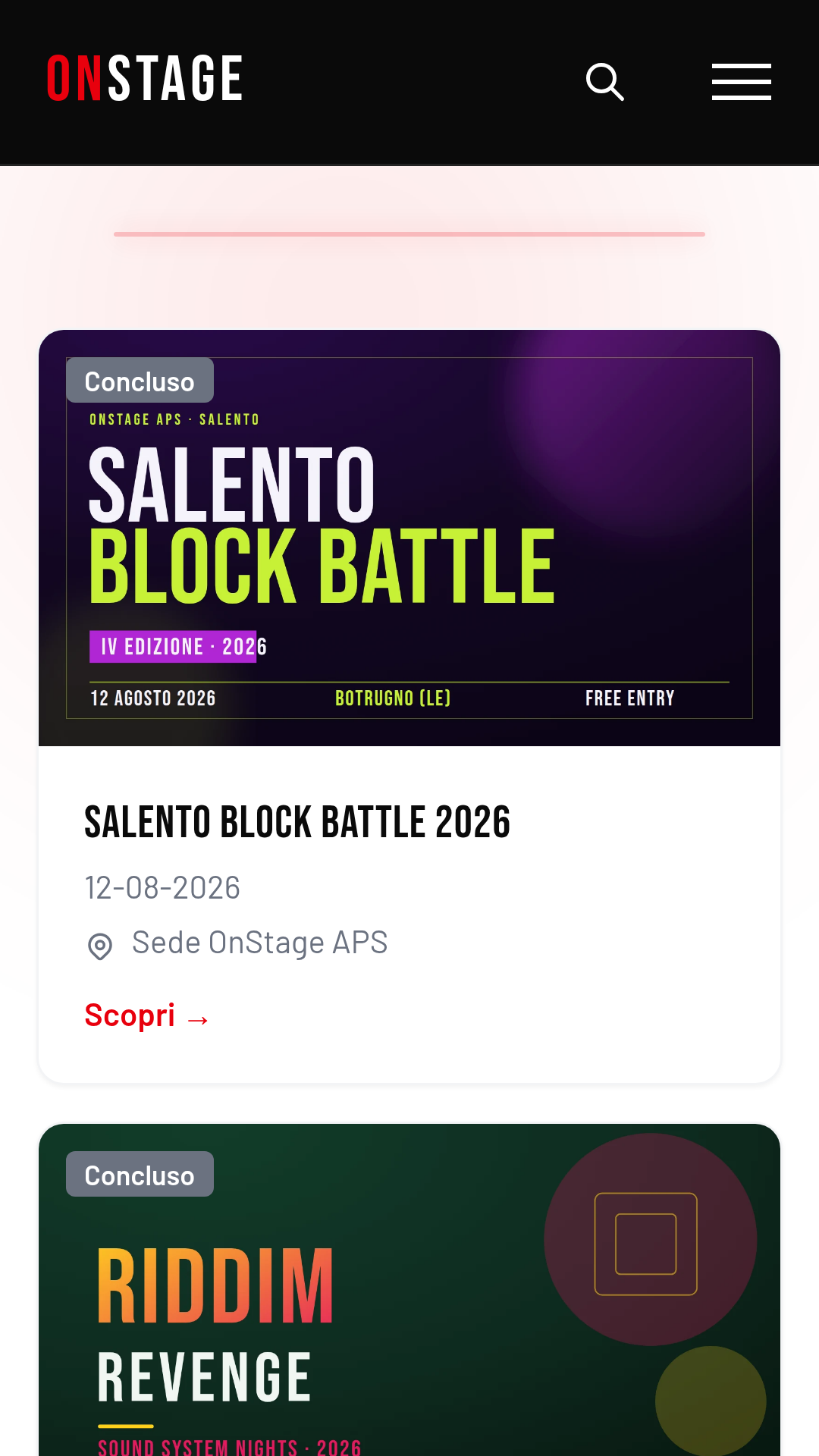
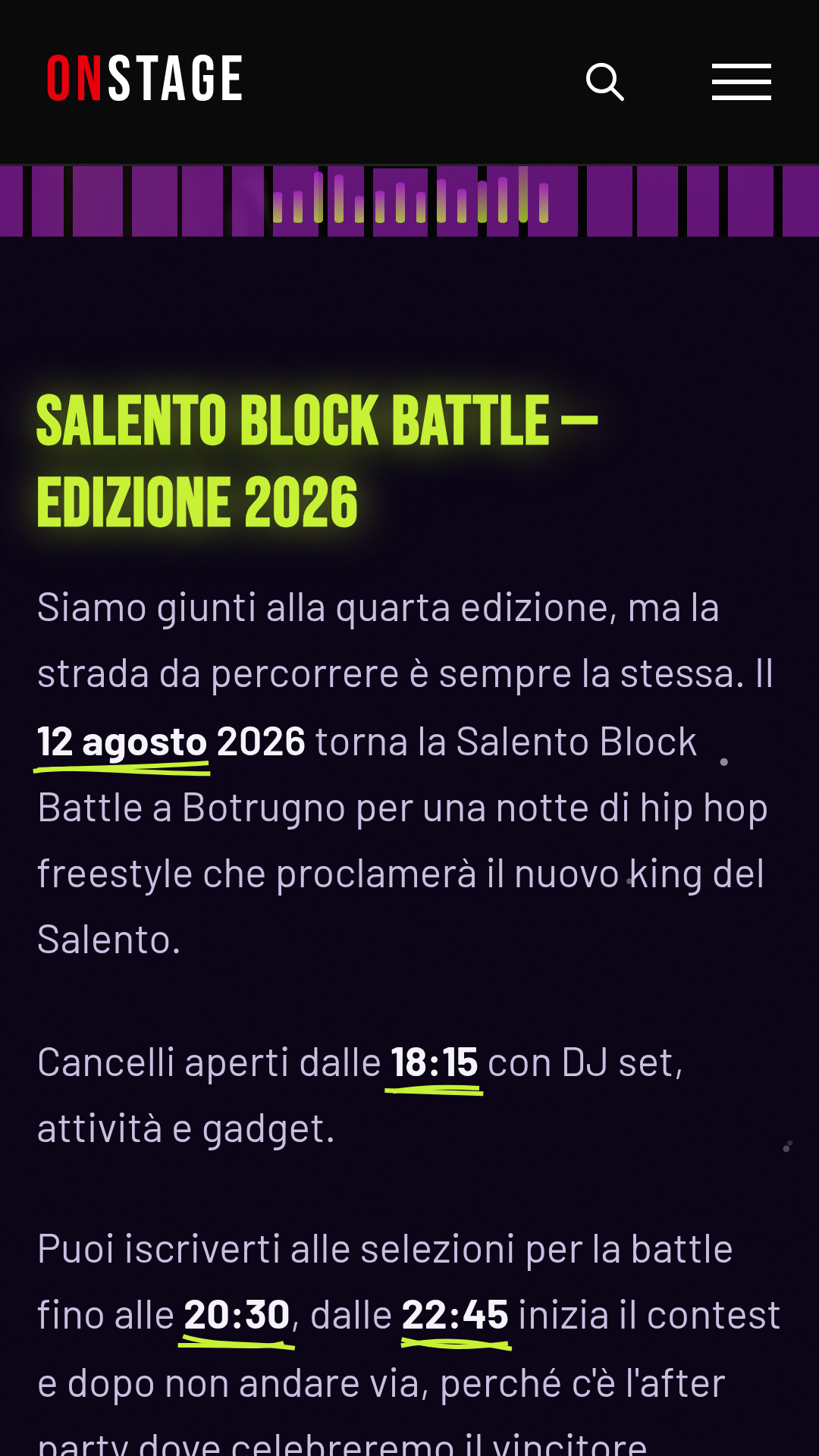
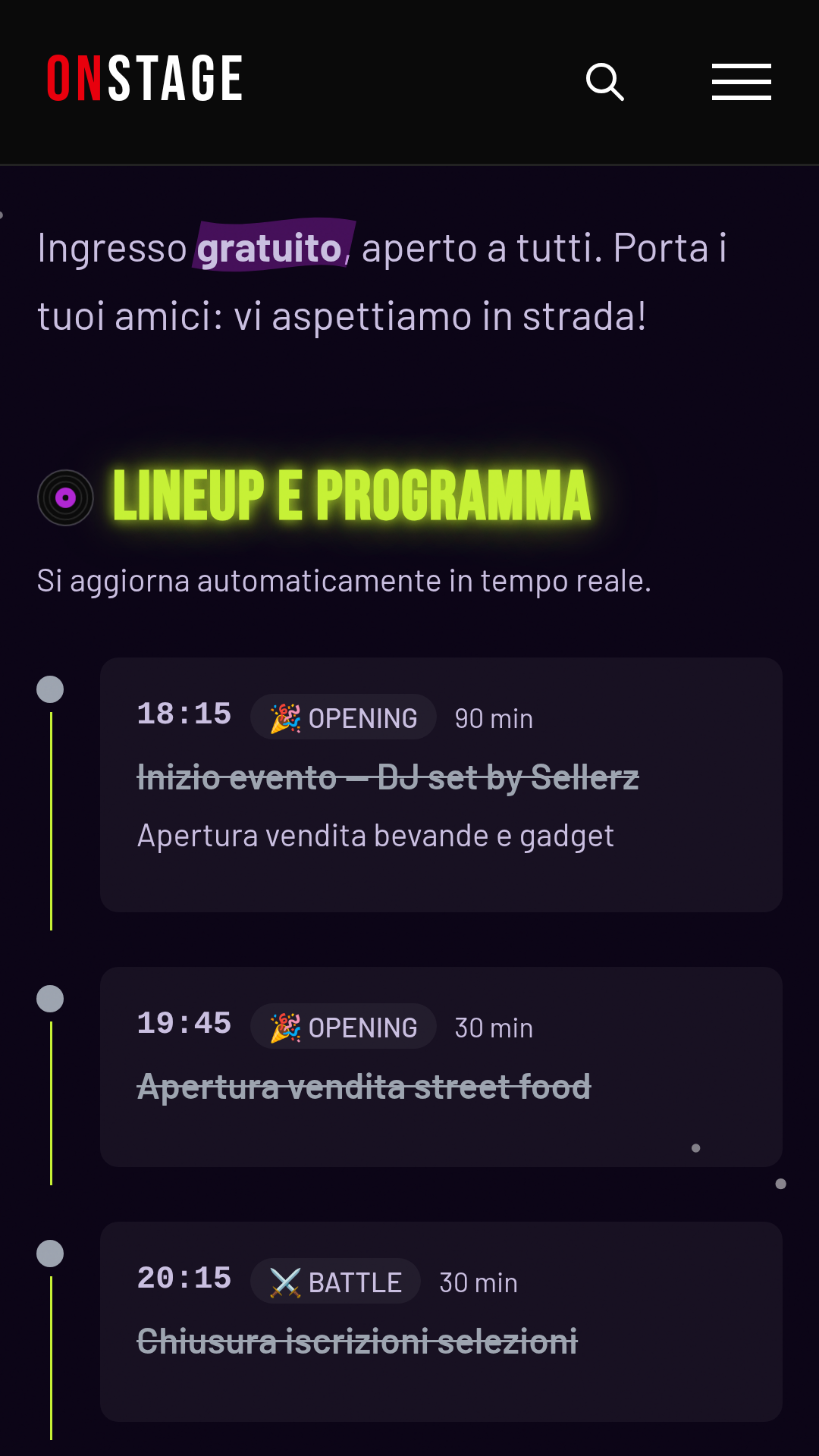
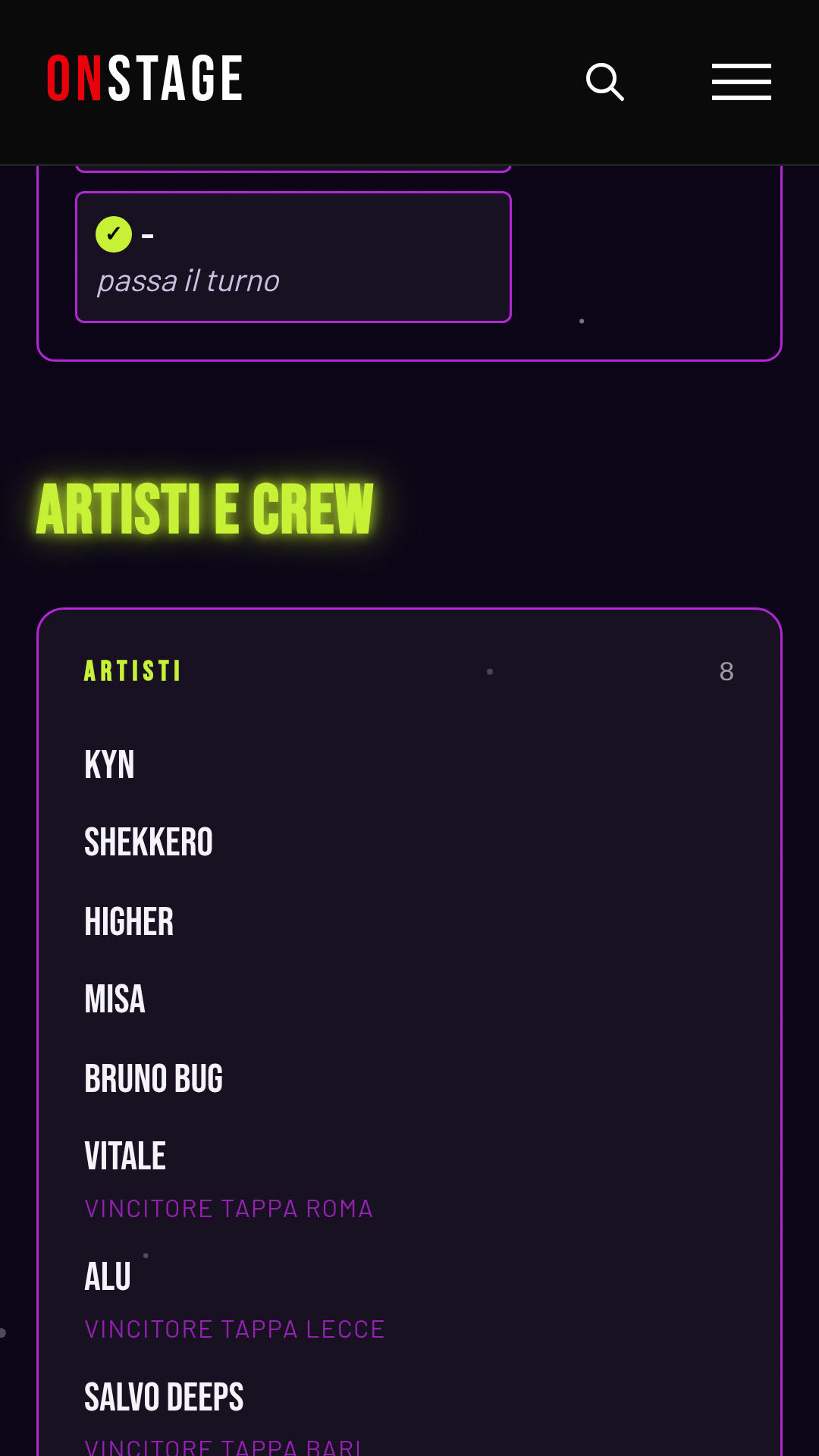
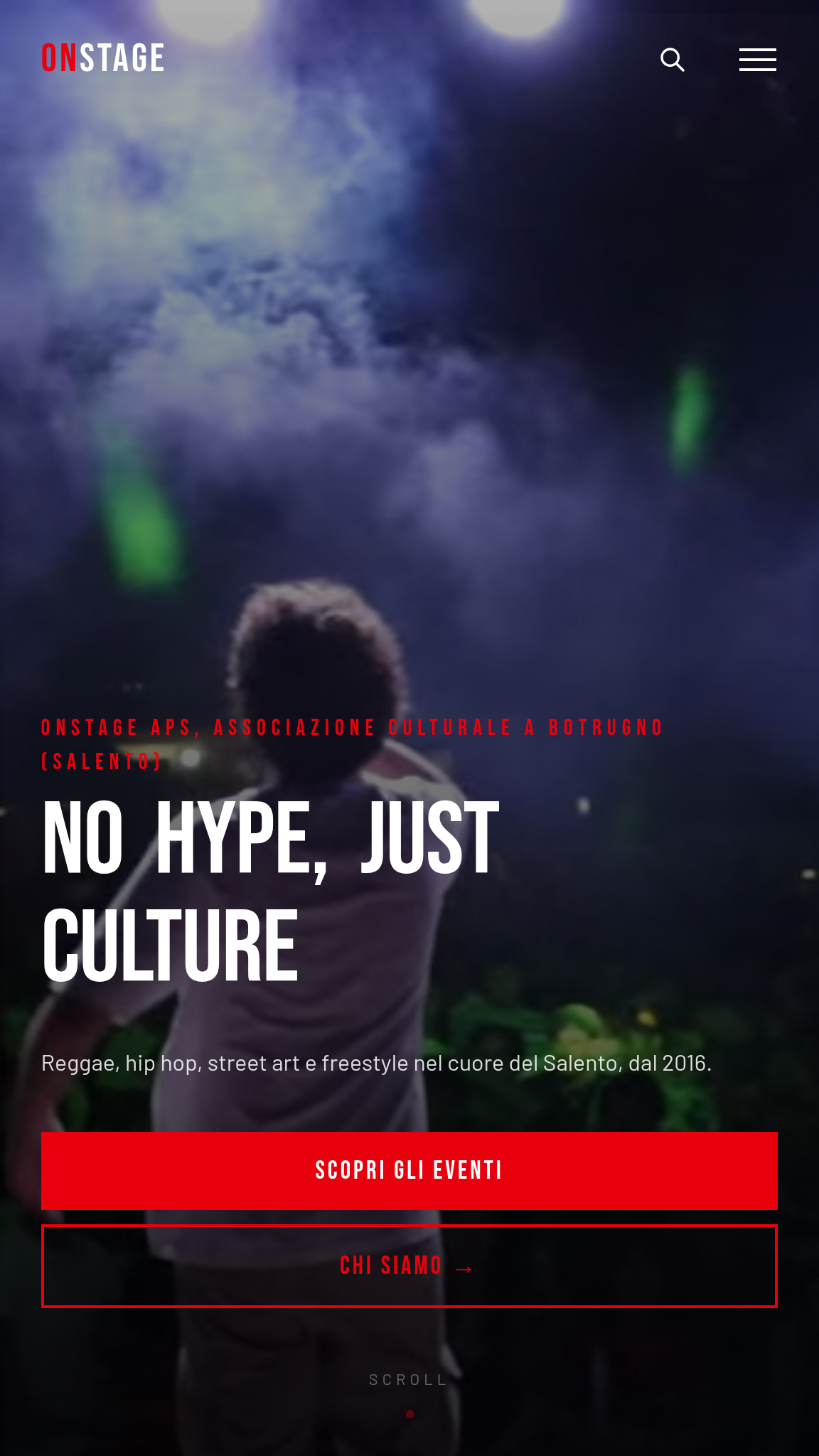
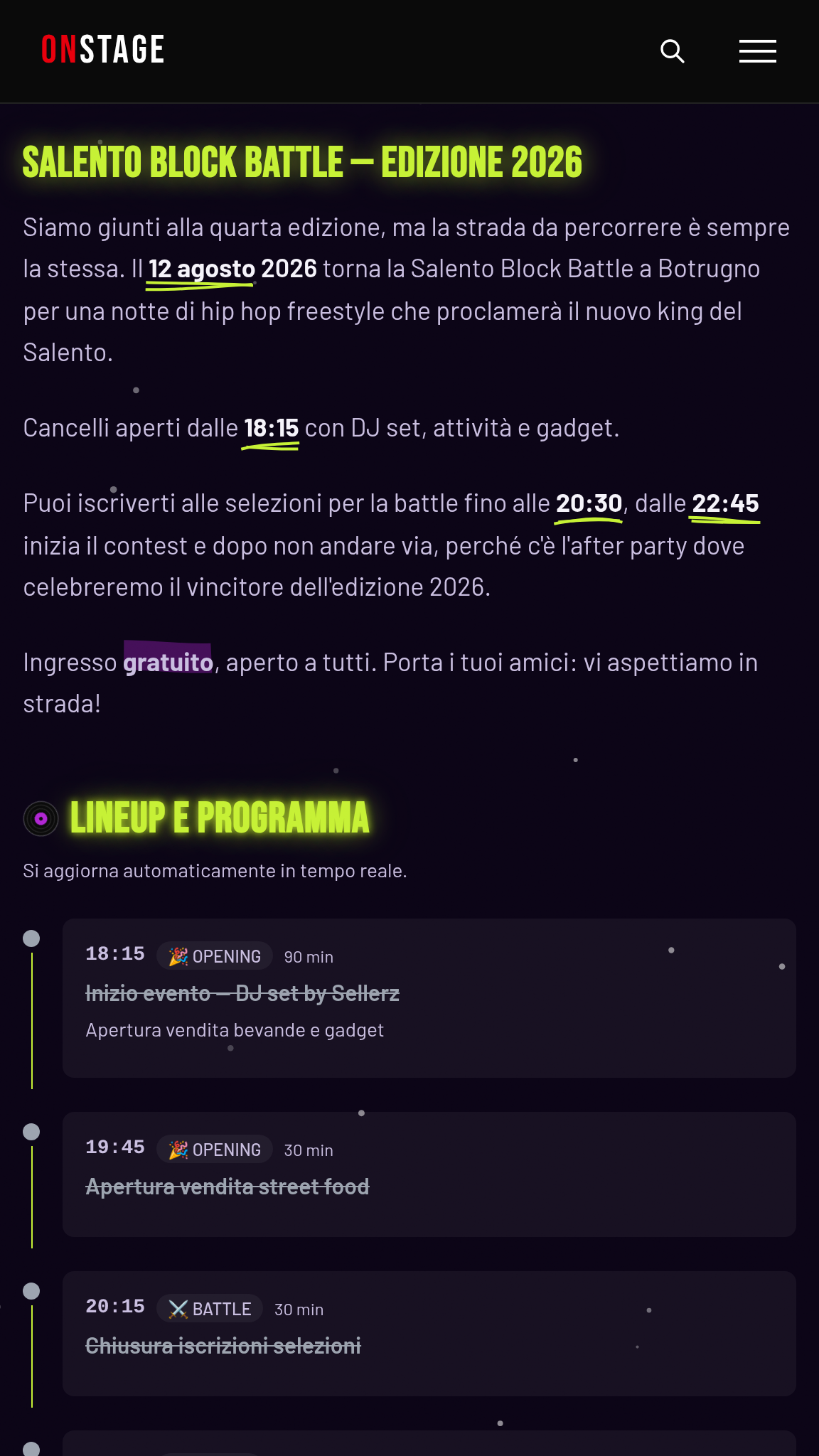
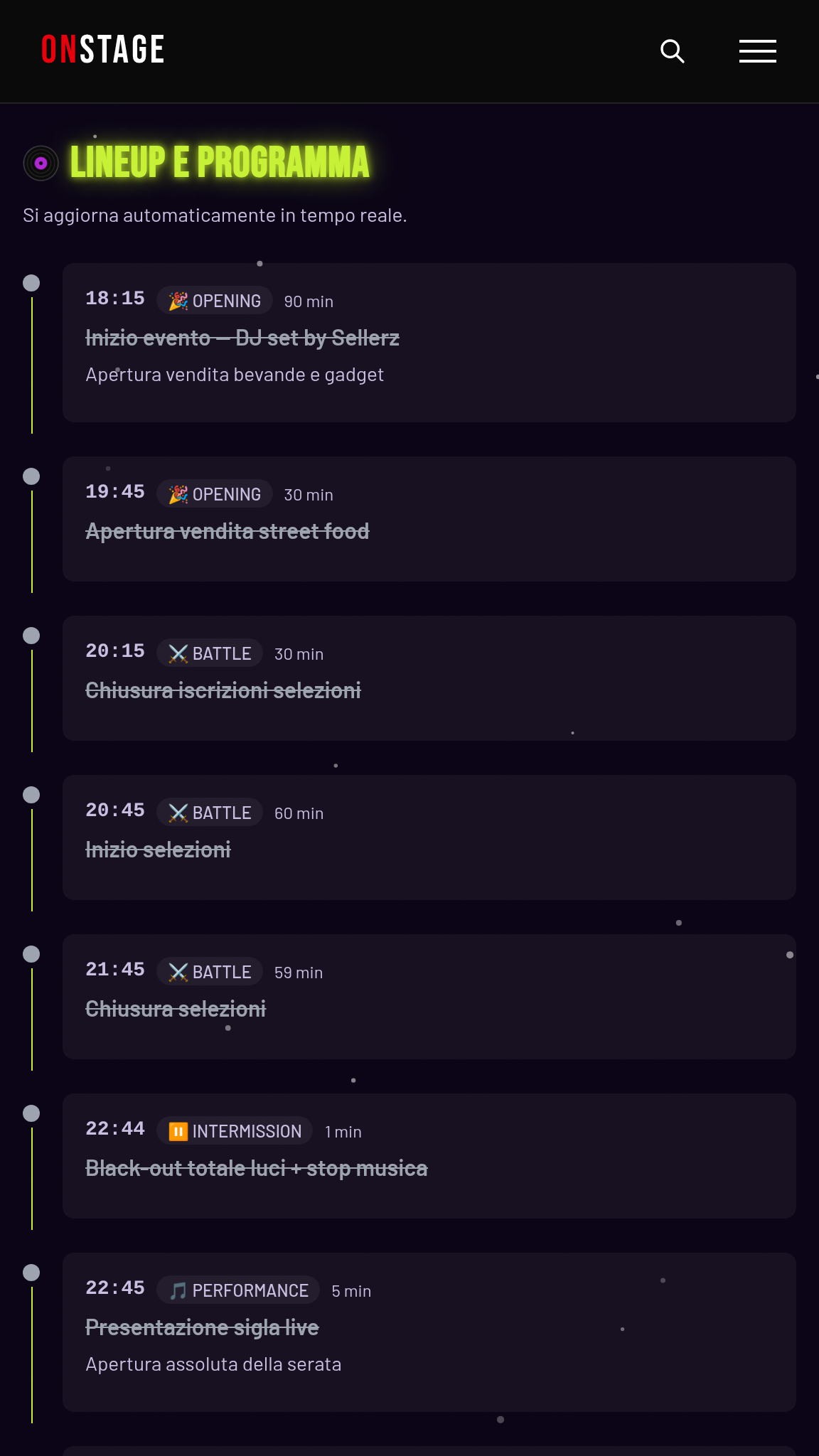
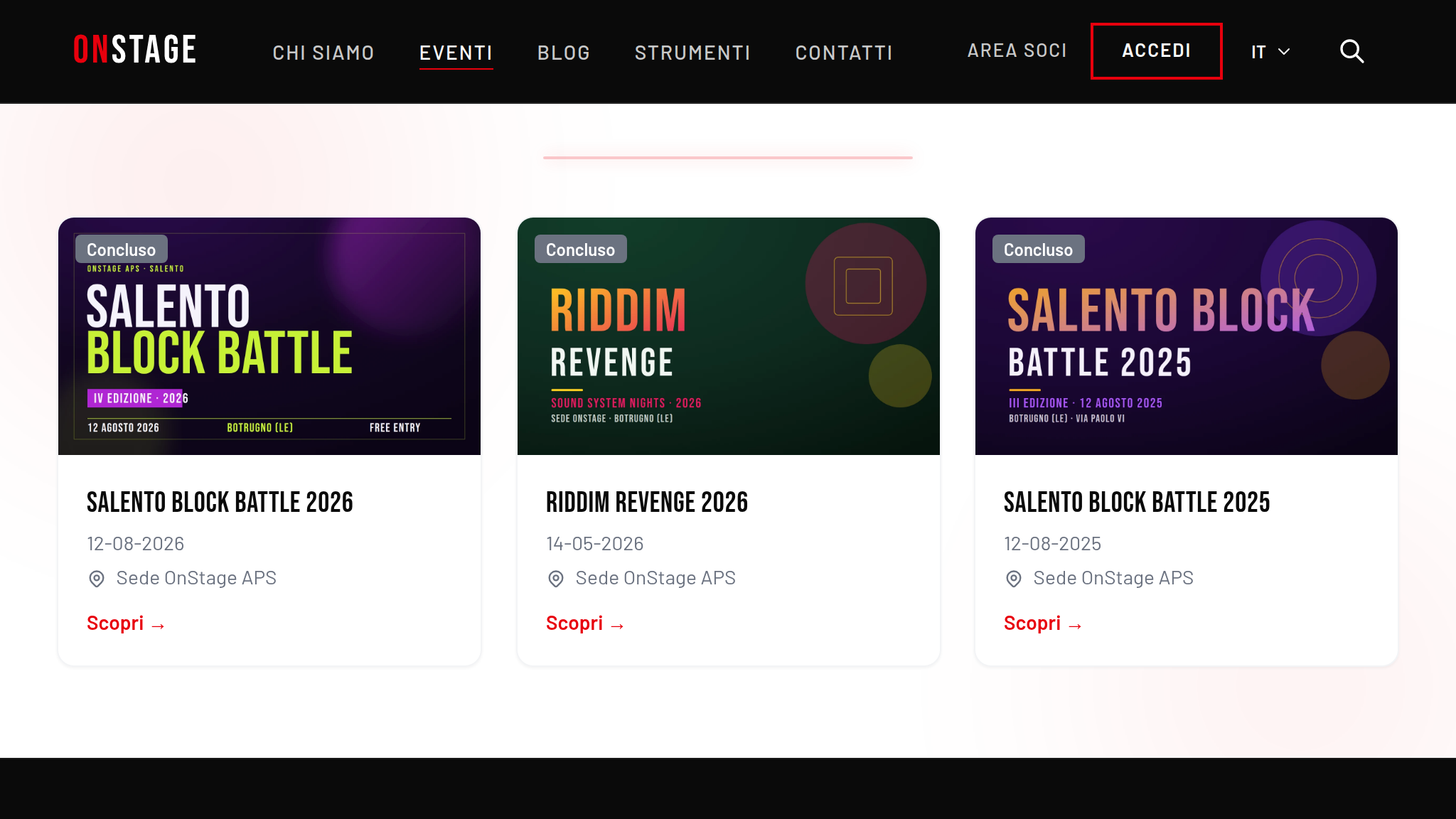
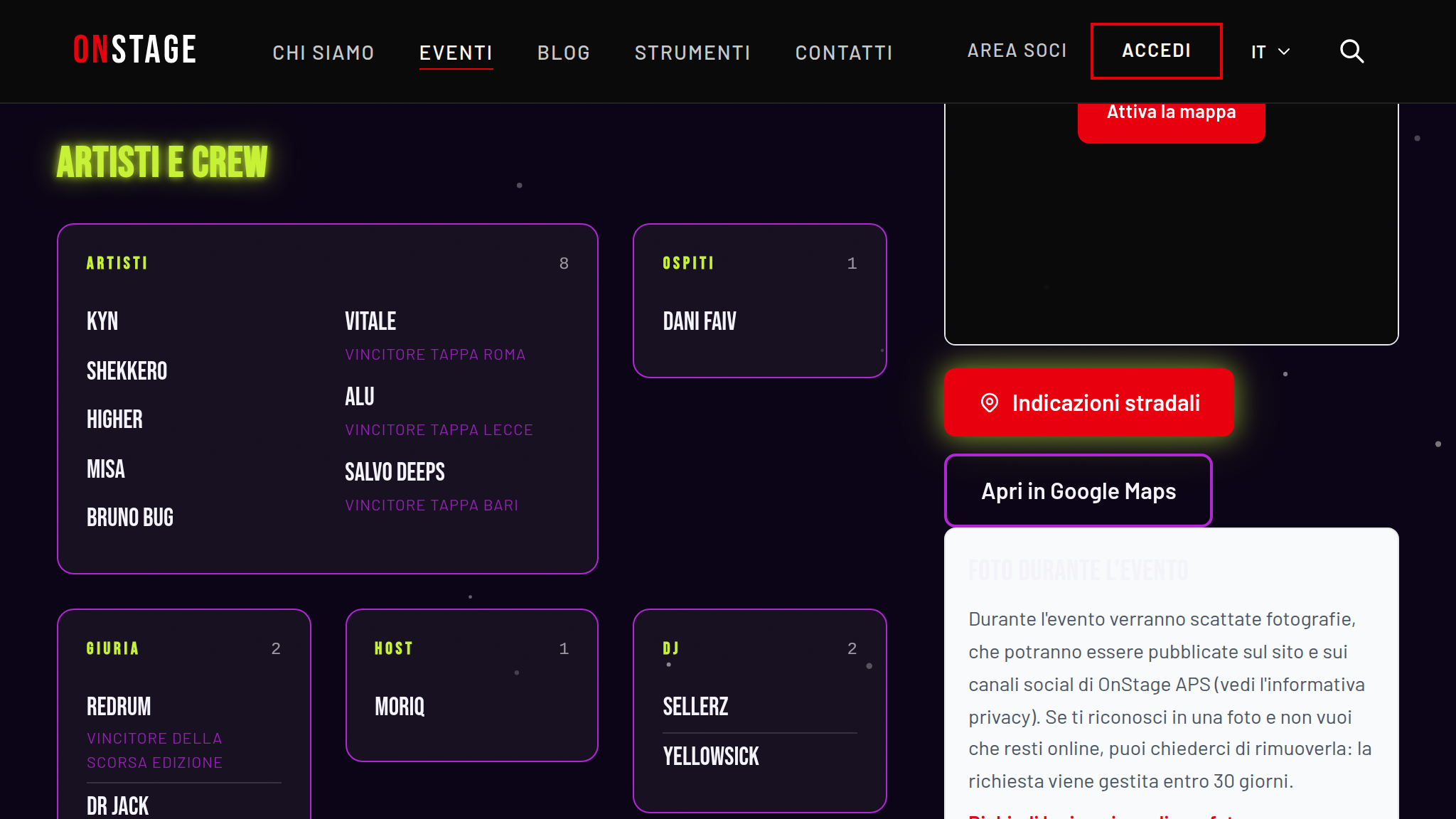
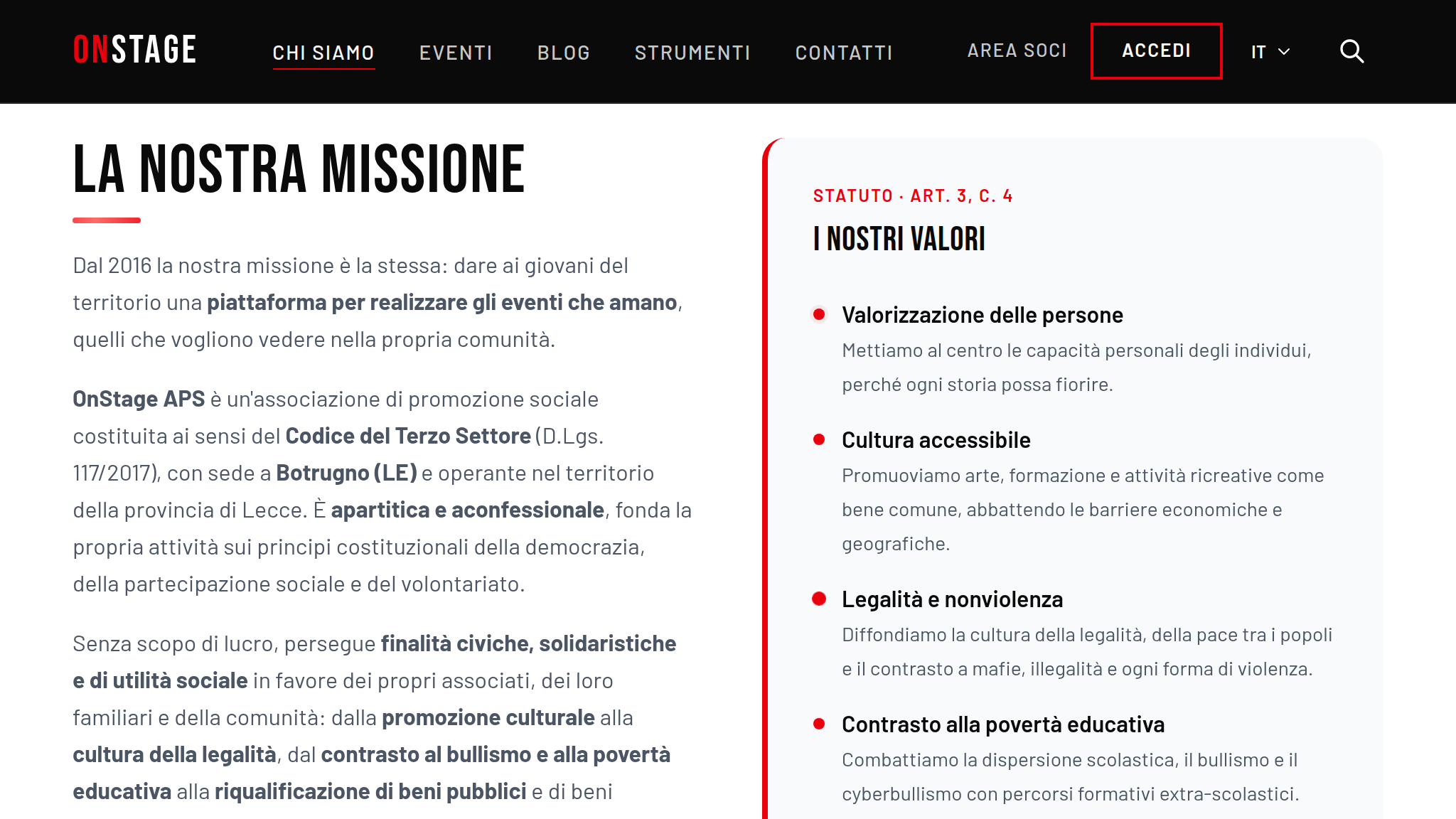
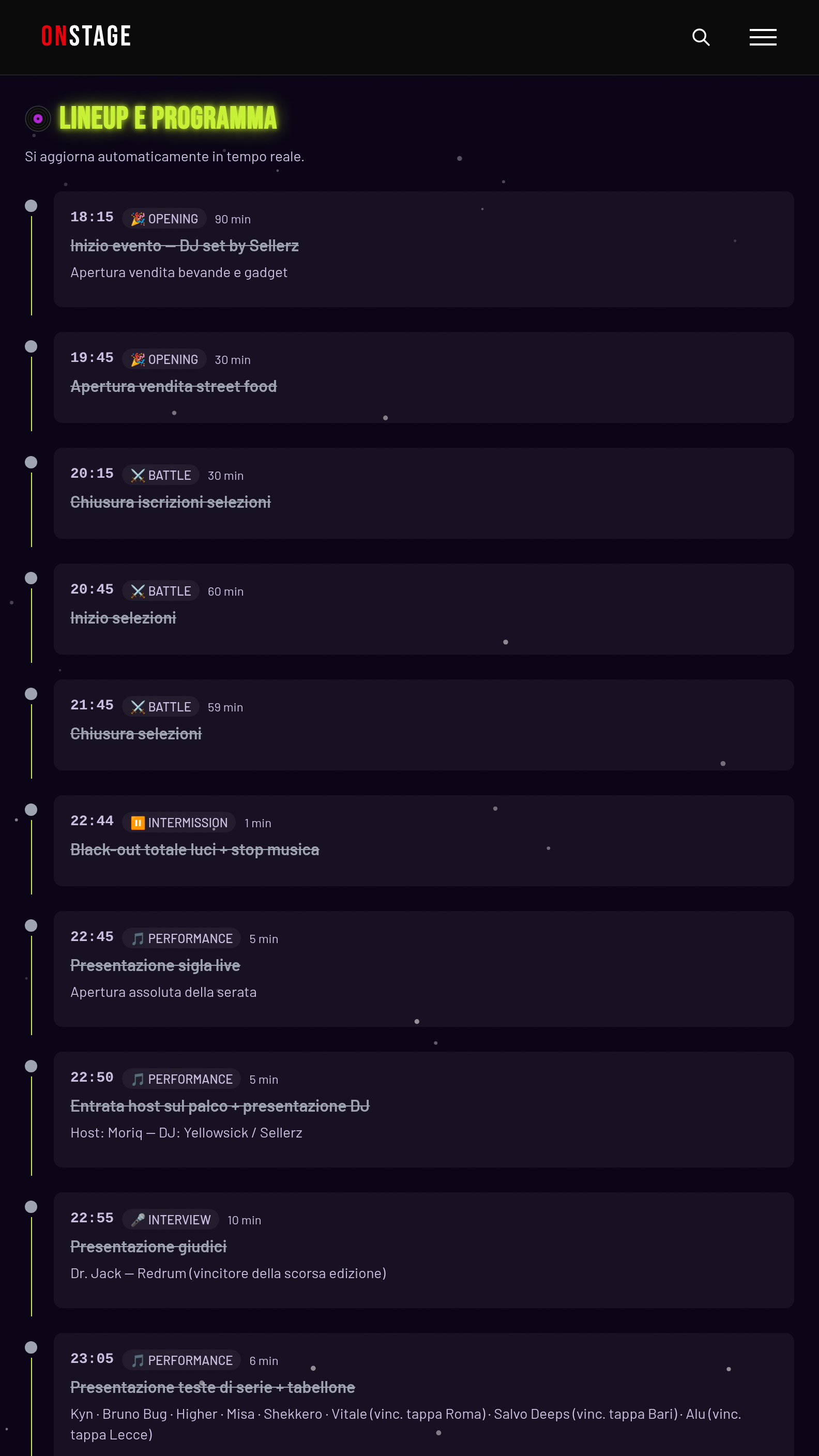
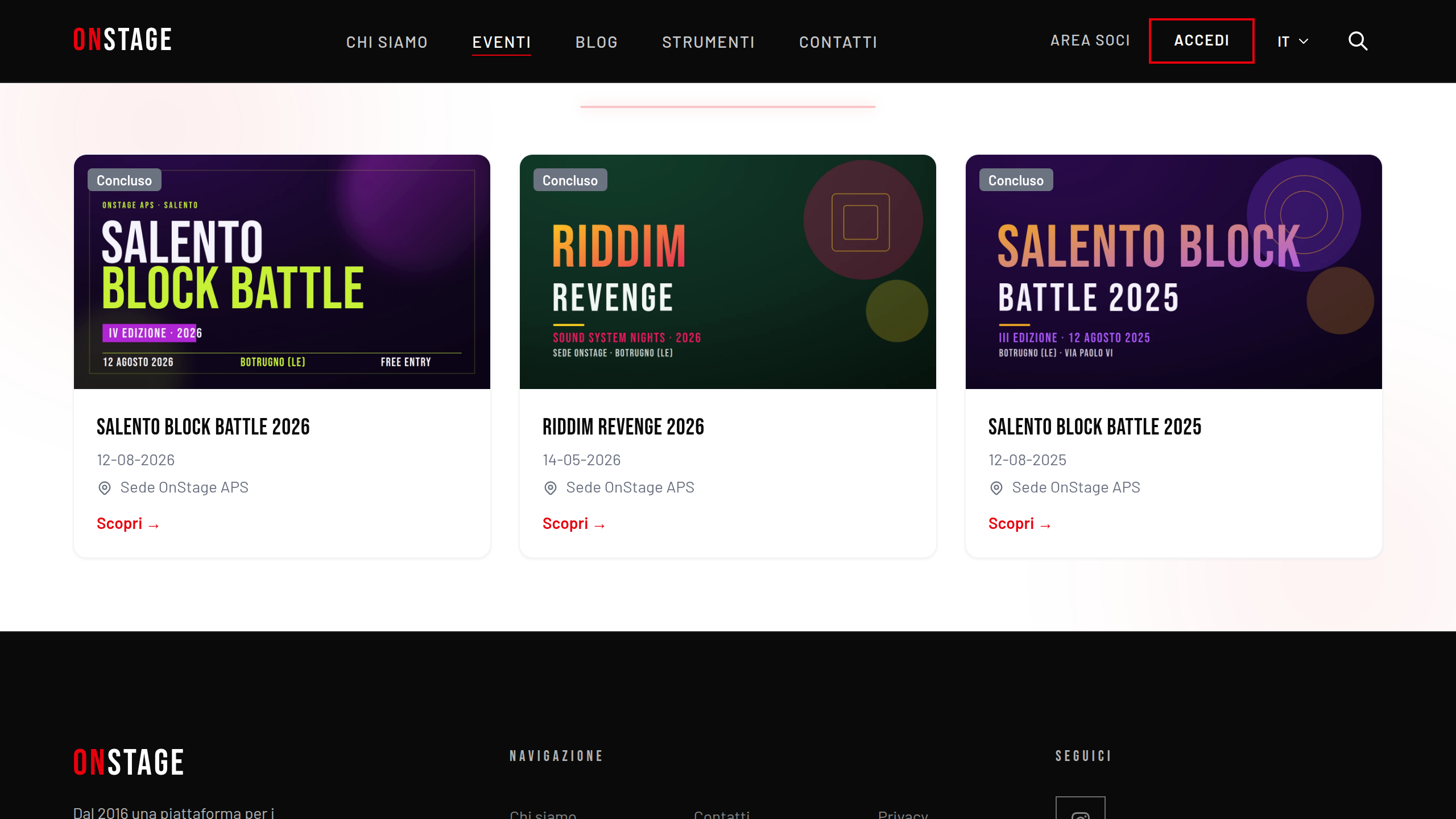
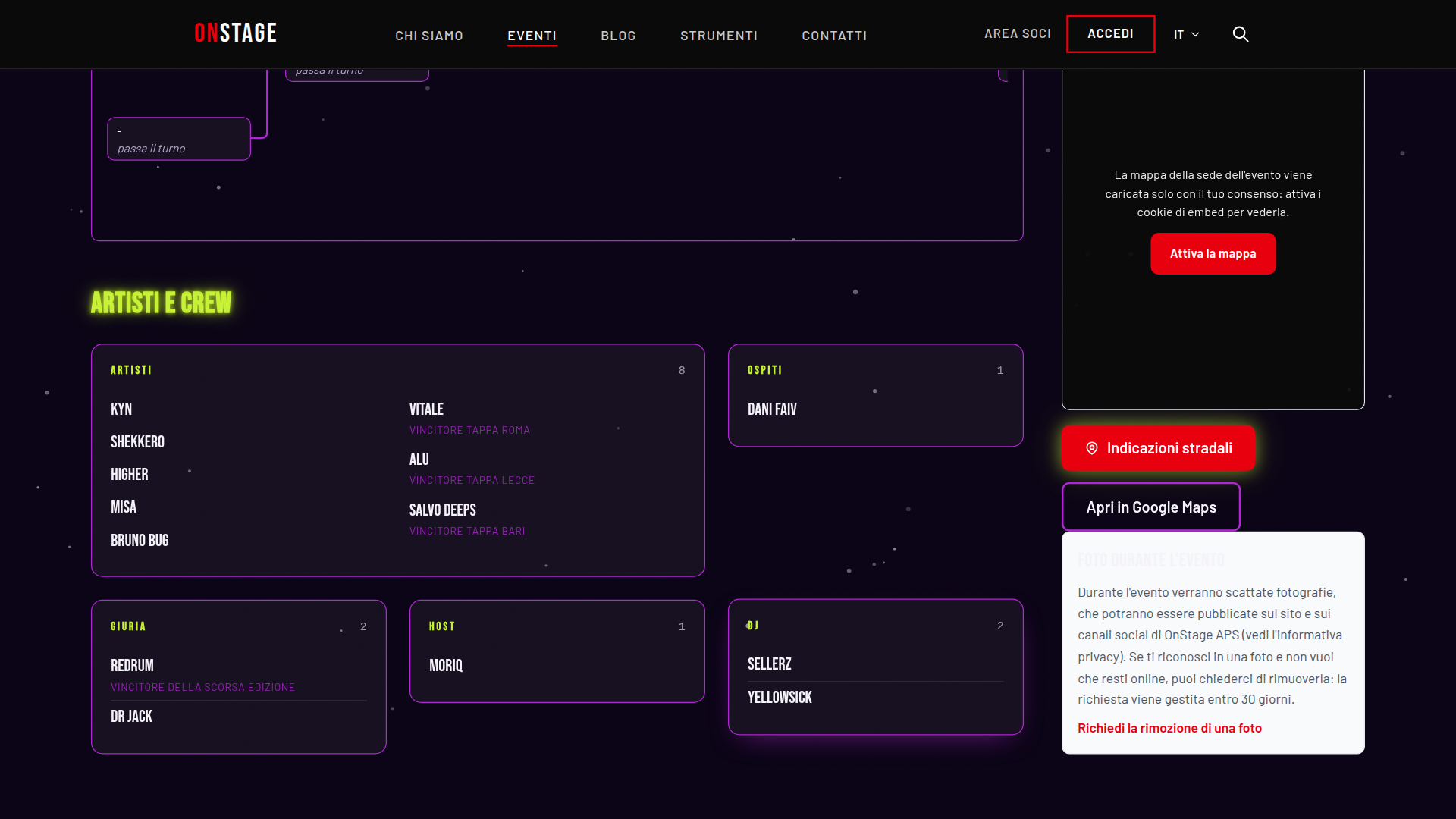
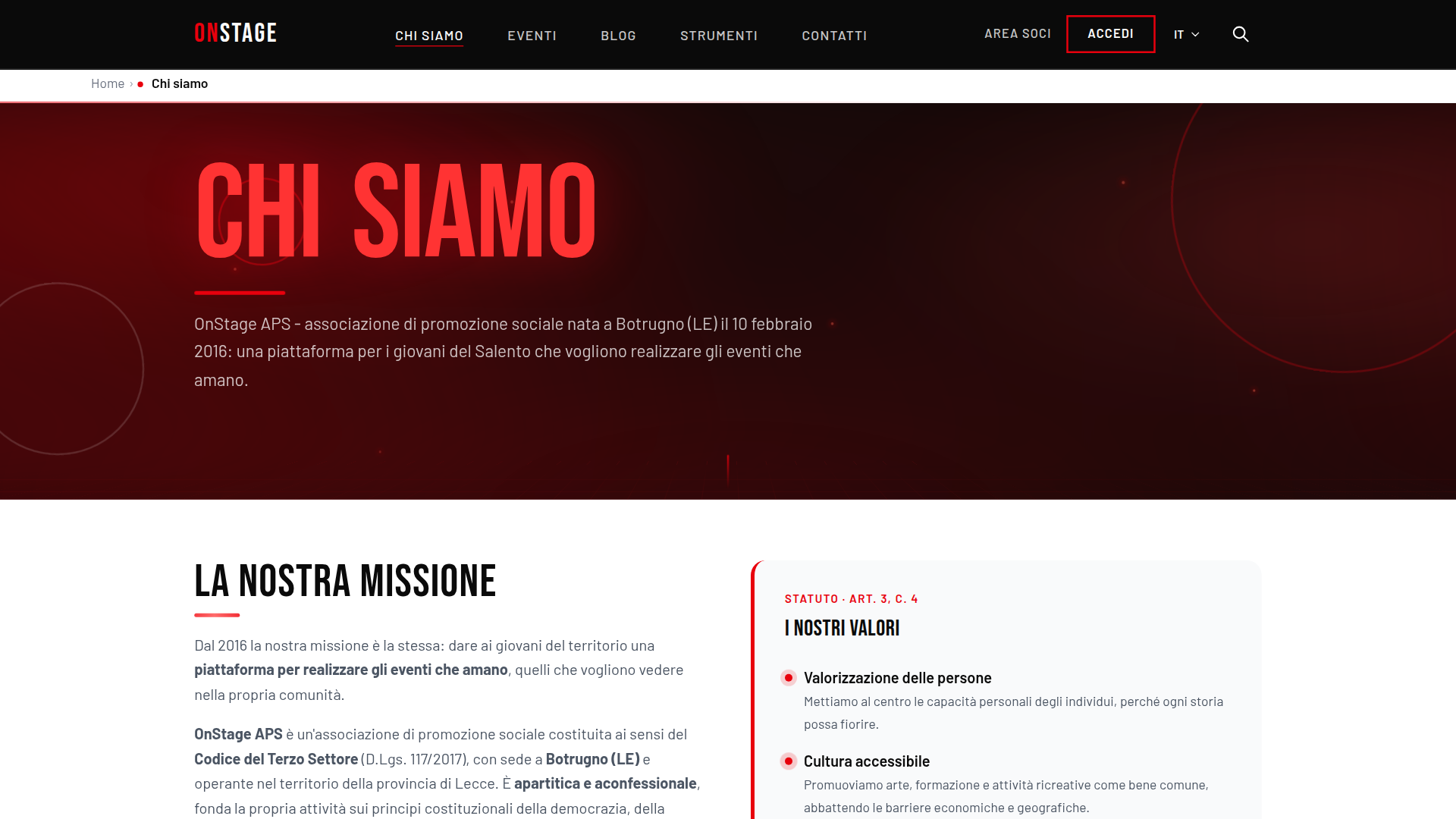
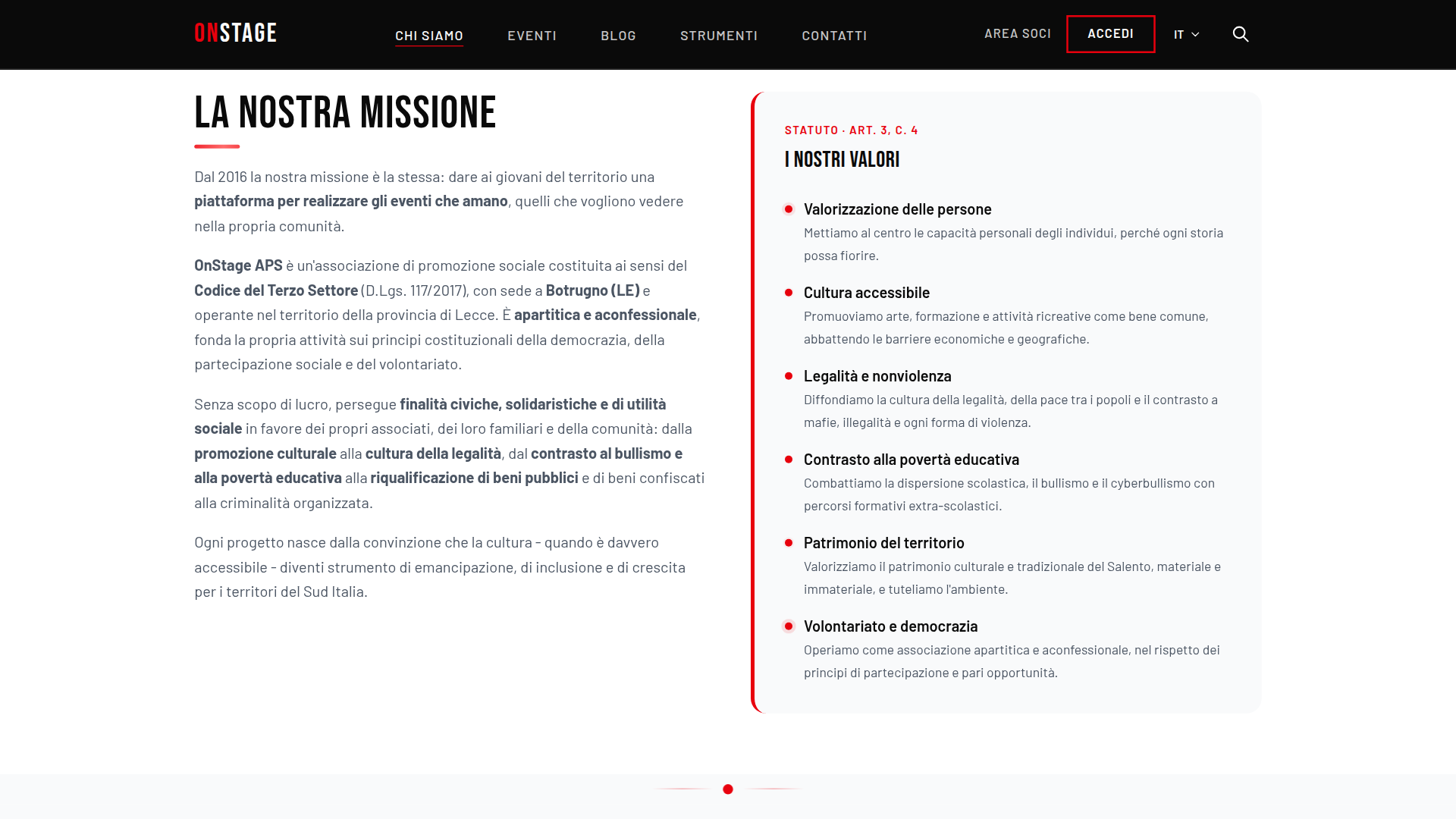
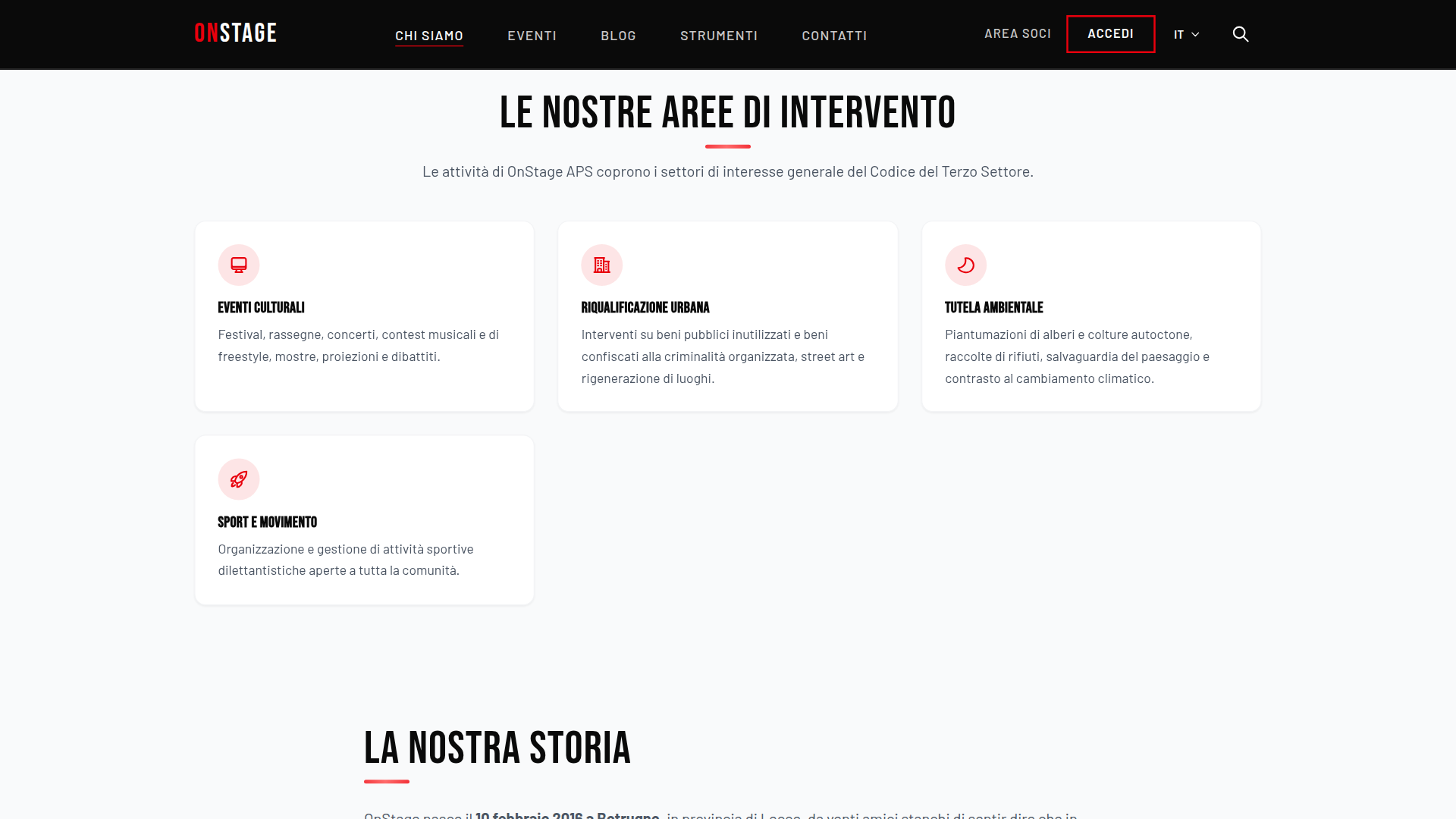
Here is the OnStage app as it really is, on a phone, a tablet and a Chromebook: the home page, the events with their programme and artists, and the page that tells who we are.